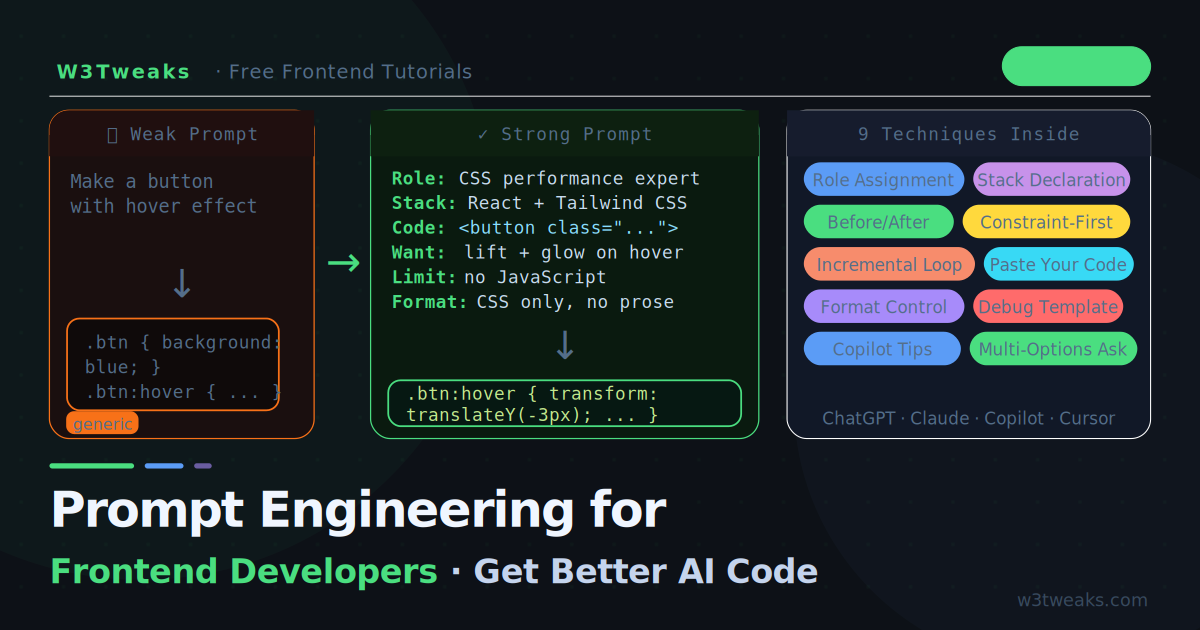
Every frontend developer is now using AI tools daily. ChatGPT, Claude, GitHub Copilot, Cursor — they are all in the workflow. But most developers are leaving enormous productivity on the table because they treat AI like a search engine rather than a collaborator.
The difference between a useless AI response and a perfect one is almost always the quality of the prompt. This guide teaches you the specific techniques that produce clean, working, production-ready frontend code — with real before-and-after examples for CSS, JavaScript, and HTML.
Why Frontend Prompting Is Different
General prompt engineering advice is everywhere. But frontend development has specific challenges that generic guides do not address:
- CSS is context-sensitive — the same property behaves differently depending on the parent, the display mode, and the cascade
- Browser compatibility matters — you need code that works across Chrome, Firefox, Safari, and Edge
- Design intent is hard to describe — “make it look nice” is meaningless to an AI
- Code often needs to integrate — you are not starting from scratch, you are adding to an existing codebase
These four realities shape every technique in this guide.
The Foundation: Three Principles
Before specific techniques, understand these three principles that underpin all good frontend prompts:
1. Context over brevity More information almost always produces better output. Describe your tech stack, your constraints, and your existing code. A longer prompt takes 10 seconds to write and saves 10 minutes of fixing broken output.
2. Show, do not just tell Paste the actual HTML, CSS, or JavaScript you are working with. AI cannot read your mind — it can read your code.
3. Specify the output format Tell the AI exactly what you want back: “Return only the CSS, no explanation.” or “Give me the complete JavaScript file with comments.” Vague requests return vague, padded responses.
Technique 1 — The Before/After Pattern
The single most effective pattern for getting CSS help. Show the AI what you have and what you want to achieve.
Weak prompt:
Make a button with a hover effectStrong prompt:
I have this HTML button in a dark-themed React app using Tailwind CSS:

<button class="bg-blue-600 text-white px-6 py-2 rounded-lg">
  Get Started
</button>

I want a hover effect that:
- Lifts the button slightly (translateY)
- Adds a soft glow behind it matching the blue colour
- Has a smooth 200ms transition
- Works without JavaScript

Return only the CSS/Tailwind classes. No explanation needed.
The strong prompt specifies: the existing code, the tech stack, the exact behaviour wanted, the constraint (no JS), and the output format.
Technique 2 — Stack Declaration
Always declare your tech stack upfront. AI models know the quirks of every framework but they guess the wrong one if you do not specify.
Template:
Tech stack: [framework], [CSS approach], [browser targets]
Task: [what you need]
Constraint: [what you cannot use or change]
Real example:
Tech stack: Vanilla JavaScript (ES2022+), plain CSS (no frameworks),
target browsers: Chrome 110+, Firefox 110+, Safari 16+

Task: Build a debounced search input that:
- Fires a callback 300ms after the user stops typing
- Shows a loading spinner inside the input while waiting
- Clears the spinner when results return

Constraint: No external libraries. Keep it under 40 lines.

Return: A self-contained JS function and the required CSS.
Technique 3 — The Role Assignment
Assigning a specific expert role dramatically shifts the quality and style of the output. This works because it activates different parts of the model’s knowledge and changes the assumed context.
Compare these role assignments for the same task:
| Role | What You Get |
|---|---|
You are a senior CSS engineer... | Clean, well-commented, best-practice code |
You are a performance-obsessed developer... | Minimal DOM, GPU-accelerated animations |
You are a CSS accessibility expert... | ARIA-correct, keyboard-navigable, high-contrast |
You are a beginner-friendly tutor... | Explained step by step, no jargon |
Example:
You are a senior frontend engineer who writes clean,
accessible, well-commented CSS. You prefer modern CSS
features (custom properties, container queries, :is(), :has())
over older workarounds.

Task: Write a responsive card grid that switches from
1 column on mobile to 2 on tablet to 3 on desktop,
using CSS Grid with container queries instead of media queries.

Return only the CSS with short inline comments.
Technique 4 — Constraint-First Prompting
The best code is often defined by what it does NOT do. Constraints force the AI to make better decisions.
Common frontend constraints to include:
- No external libraries or CDN imports
- No inline styles
- Must work without JavaScript
- Accessible — keyboard navigable and screen reader friendly
- Must not break existing CSS (no global resets)
- IE11 not required, but Safari 15+ must work
- Under 30 lines
- No class name conflicts — use BEM naming with prefix: .w3t-
Example using multiple constraints:
Write a CSS tooltip component.

Constraints:
- Pure CSS, zero JavaScript
- Works on both mouse hover AND keyboard focus
- Uses :has() for the trigger relationship
- Does not use position: fixed (it breaks inside overflow:hidden parents)
- Must pass WCAG AA contrast ratio
- BEM naming with prefix .tt-

Return: HTML structure + CSS only.
Technique 5 — The Incremental Refinement Loop
Do not try to get the perfect output in one shot for complex tasks. Use a conversation loop — each turn adds a specific refinement.
Round 1 — Get the skeleton:
Write a vanilla JS accordion component. Three panels,
one open at a time. No animation yet.
Round 2 — Add behaviour:
Good. Now add:
- Smooth height animation using CSS transitions
- The animation should use max-height technique
  so it works without knowing the content height
- Keep the existing JS, only add what's needed
Round 3 — Add accessibility:
Now make it fully accessible:
- aria-expanded on triggers
- aria-controls linking trigger to panel
- Keyboard: Enter/Space to toggle, arrow keys to navigate
- Do not change the visual design
Round 4 — Production hardening:
Finally:
- Handle the edge case where JavaScript is disabled
  (panels should all be visible with noscript)
- Add a data-open attribute for CSS-only initial state
- Return the complete final version as one clean file
This pattern produces far better results than one massive prompt, because each step builds on confirmed-working previous output.
Technique 6 — Paste Your Actual Code
The fastest way to get relevant output is to paste what you are already working with. AI cannot guess your variable names, your class structure, or your existing patterns.
Weak prompt:
How do I add dark mode to my website?Strong prompt:
Here is my current CSS file. I use custom properties for all colours.
Add a dark mode that:
1. Respects prefers-color-scheme automatically
2. Can also be toggled with a .dark class on <html>
3. Only changes the custom property values — do not touch
   any of the other rules

Here is my current CSS:

:root {
  --bg: #ffffff;
  --text: #1a1a1a;
  --accent: #3b82f6;
  --surface: #f3f4f6;
  --border: #e5e7eb;
}

/* ... rest of file ... */
The AI now knows your exact variable names and can produce output that slots directly into your file without renaming anything.
Technique 7 — Request Multiple Options
When you are not sure of the best approach, ask for options with trade-off explanations. This is faster than asking one at a time and comparing.
Show me 3 different ways to vertically centre a div
inside a full-height parent in CSS.

For each approach:
1. The CSS (5 lines max)
2. One-line note on when to use it
3. One-line note on its main limitation

Format as three code blocks with brief labels.
This pattern works especially well for:
- Layout approaches (Flexbox vs Grid vs absolute positioning)
- Animation techniques (CSS vs JS vs Web Animations API)
- State management patterns in vanilla JS
- CSS selector strategies
Technique 8 — Debugging Prompts
AI is excellent at debugging when you give it the full context. The key is including: the code, the error, the expected behaviour, and the actual behaviour.
Template:
I have a bug. Here is the context:

CODE:
[paste the relevant code]

ERROR (if any):
[paste the console error exactly]

EXPECTED:
[what should happen]

ACTUAL:
[what is actually happening]

BROWSER:
[which browser, which version]

Do not rewrite the whole thing. Find the specific bug
and explain why it happens before showing the fix.
Asking for the explanation first is important — it forces the AI to reason through the problem rather than pattern-match to a generic fix, which often misses the real cause.
Technique 9 — Output Format Control
Padding and explanation waste time when you just need code. Control the output format explicitly.
For quick code generation:
Return only the code. No explanation, no preamble, no markdown prose.For learning:
Return the code with inline comments explaining each non-obvious line.
No separate explanation block — all notes inside the code.
For copy-paste ready output:
Return a complete, self-contained HTML file I can save and open
in a browser immediately. Include all CSS in a <style> tag
and all JS in a <script> tag. No external dependencies.
For a code review:
Do not write new code. Review the code I paste below and list:
1. Any bugs or edge cases
2. Performance issues
3. Accessibility problems
4. Modern alternatives to anything outdated

Format as a numbered list. Be direct.
Real Before/After Examples
Example 1 — CSS Animation
Before:
Make a loading spinner with CSSAfter:
You are a CSS performance expert.

Create a loading spinner that:
- Uses only CSS (no JS, no SVG animation)
- Animates on the GPU compositor thread only
  (use transform and opacity, not width/height)
- Is 40px × 40px, 3px stroke, colour: #5b9cf6
- Has a smooth, continuous rotation at 0.8s per turn
- Is accessible — includes aria-label and role="status"
- Works in all modern browsers (Chrome, Firefox, Safari 16+)

Return: The minimum required HTML + CSS.
No explanation.
Example 2 — JavaScript Function
Before:
Write a function to format dates in JavaScriptAfter:
Write a JavaScript utility function that formats dates for a blog.

Requirements:
- Input: a date string (ISO format) or Date object
- Output: human-readable string, e.g. "May 21, 2026" or "3 days ago"
- Show "X minutes/hours/days ago" for dates within the last 7 days
- Show the full formatted date for anything older
- Use Intl.DateTimeFormat for localisation (no external libraries)
- Handle invalid date inputs gracefully — return "Unknown date"
- Include JSDoc comments

Return: The function only, no usage examples.
Example 3 — Debugging
Before:
My flexbox layout is brokenAfter:
My flexbox layout is broken. Here is the context:

CODE:
.container {
  display: flex;
  align-items: center;
  height: 100vh;
}
.child {
  flex: 1;
  min-height: 0; /* I added this to fix a scroll issue */
}

EXPECTED: Children are vertically centred in the viewport.

ACTUAL: On Safari iOS 16, the children collapse to zero height
        and disappear entirely.

BROWSER: Safari iOS 16.4

Explain why this happens and give the minimal fix.
Do not rewrite the layout — just fix the Safari issue.
GitHub Copilot Specific Tips
Copilot reads your file context, so prompt engineering happens in comments and function names — not a chat box.
Use descriptive function names:
// Bad  — Copilot suggests generic code
function handle() {}

// Good — Copilot understands intent
function debounceSearchInput(inputEl, callback, delayMs = 300) {}
Write the comment first, then let Copilot complete:
// Throttle scroll events to fire at most once every 16ms
// Uses requestAnimationFrame for smooth performance
// Returns a cleanup function to remove the listener
function throttleScroll(callback) {
  // Copilot writes the body here
}
Use JSDoc to constrain the output:
/**
 * Parses CSS colour string to RGB components
 * @param {string} color - Any valid CSS colour (#hex, rgb(), hsl(), named)
 * @returns {{ r: number, g: number, b: number } | null}
 */
function parseCSSColor(color) {}
Key Takeaways
- Context is everything — paste your actual code, declare your stack, and name your constraints upfront
- Assign a role — “you are a senior CSS engineer” produces better output than no role
- Use the incremental loop for complex components — skeleton → behaviour → accessibility → production
- Control output format — tell the AI exactly what to return and what to omit
- Paste the real error for debugging — include the exact console message, expected vs actual, and browser
- For Copilot — descriptive function names and JSDoc comments are your prompts
- Ask for options when you are unsure of the best approach — trade-off comparisons save research time
- The fix before the rewrite — ask AI to explain the bug before showing the fix to ensure it found the real cause