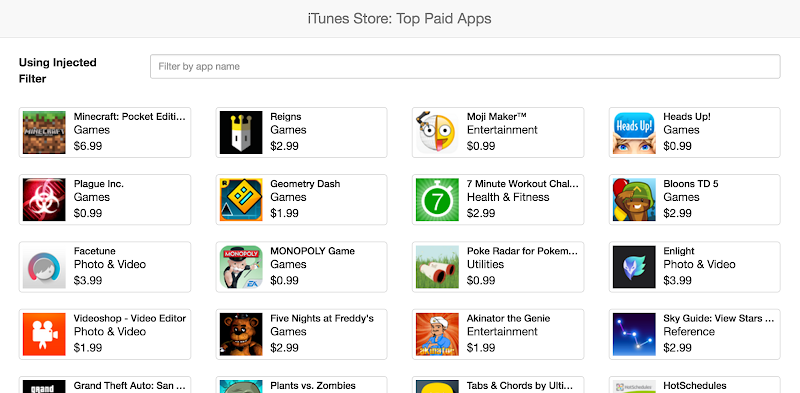
This article will explain how to inject the custom filter in the AngularJs controller. You can find the demo and tutorial about custom filters inside AngularJs controllers. From this article you will be learning, how to create custom filters and how to inject the custom filter into the controller.
In this article I have covered the below points.
- How to create custom filter?
- How to use or inject the created custom filter in to angular js controller?
Let’s start the tutorial
Create the folders and files: Follow the folder structure below and this is the one of the best practice for angularjs project
- js
controllers
controller.js
directives
- directive.js
filters
- filter.js
main.js
lib
- here will go all the librarie files (Ex: jquery, bootstrap, angularjs, etc…)
assets
-
css
-
img
partials
- main.html
index.html
Once you created the folders and files, add the below code to index.html
`<!DOCTYPE html>
<html>
	<head>
		<!-- For this tutorial i'm using iTunes JSON API -->
		<title>iTunes Top Paid Applications</title>
		<meta charset="utf-8">
		<meta http-equiv="X-UA-Compatible" content="IE=edge,chrome=1">
		<link rel="stylesheet" href="lib/bootstrap.min.css">
		<link rel="stylesheet" href="assets/css/custom.css">
		<script src="js/main.js"></script>
		<script src="js/controller/controller.js"></script>
		<script src="js/directives/directive.js"></script>
		<script src="js/filter/filter.js"></script>
	</head>
	<body ng-app="angularDemo">
		<!-- ng-view directive will initiate all the view -->
		<div ng-view></div>
	</body>
</html>`
Include Angularjs Dependency in index.html
`<script src="https://ajax.googleapis.com/ajax/libs/angularjs/1.5.6/angular.min.js"></script>
<script src="https://ajax.googleapis.com/ajax/libs/angularjs/1.5.6/angular-route.min.js"></script>`
Include below code in main.js from js folder
`var app = angular.module('angularDemo', [
  'ngRoute'
]);

app.config(['$routeProvider', function ($routeProvider) {
  $routeProvider
    // Home
    .when("/", {templateUrl: "partials/main.html", controller: "iTunesAppCtrl"})
    // else Home
    .otherwise("/", {templateUrl: "partials/main.html", controller: "iTunesAppCtrl"});
}]);`
Include below code in main.html from partials folder
`<nav class="navbar navbar-default" role="navigation">
  <div class="navbar-header">
    <span class="navbar-brand">{{title.label}}</span>
  </div>
</nav>
<div class="container">
	<div id="appFilter" class="row">
		<div class="form-group">
		  <label class="col-md-2 control-label" for="searchBox">Using Injected Filter</label>
		  <div class="col-md-10">
		  	<input type="text" class="form-control input-sm" ng-model="searchBox" id="searchBox" placeholder="Filter by app name">
		  </div>
		 </div>
	</div>
	<div class="top-buffer"></div>
	<div class="appList row">
		<div class="text-center">
			<!-- Display all the iTunes list using ng-repeat -->
            <div ng-repeat="item in items" class="col-md-3 col-sm-6">
            	<!-- Call list directives -->
            	<div list-data-directives></div>
            </div>
        </div>
	</div>
</div>`
Include below code into controller.js from controller folder which has custom filter call
`app.controller('iTunesAppCtrl', function($scope,$http,$filter) {
  $http.get('https://itunes.apple.com/us/rss/toppaidapplications/limit=10/json').
    success(function(data) {
        // Store App data in App object
        $scope.app = data.feed;
        // Parse iTunes App Data and store it in items object
        $scope.items = $scope.parseData($scope.app.entry);
        // Set page title
        $scope.title = data.feed.title;
    });

    // Parse data function
    $scope.parseData = function(data){
      var parsedAppData = [];
      if(!angular.isUndefined(data)){
        angular.forEach(data, function(value, key) {
          parsedAppData.push({
              price: value['im:price'].attributes.amount,
              priceLabel: value['im:price'].label,
              name: value['im:name'].label,
              image: value['im:image'][0].label,
              category : value.category.attributes.label
          });
        });
      }
      return parsedAppData;
    };

    $scope.$watch('searchBox', function(val)
    {
      if(!angular.isUndefined($scope.app)){
        $scope.items = $filter('iTuneAppFilter')($scope.parseData($scope.app.entry), val);
      }
    });
});`
In the above code you can find the custom filter(iTuneAppFilter) injected inside $scope.$watch. In the below topic you can find the custom filter function. $filter is the angularjs inbuild API. there we can call all our custom filters. before usning the API we have to inject the API into the controller.
Add the below custom filter inside filter.js under filters folder
`app.filter('iTuneAppFilter', function() {
  return function(arr, searchString){
      if(!searchString){
          return arr;
      }
      var result = [];
      searchString = searchString.toLowerCase();
      angular.forEach(arr, function(item){
          if(item.name.toLowerCase().indexOf(searchString) !== -1){
            result.push(item);
          }
      });
      return result;
  };
});`
“iTuneAppFilter” is the filter name which will be called in controller
Add below code to directive.js file from directivs folder.
Below code will display the values
`app.directive('listDataDirectives', function () {
    return {
        template: '<div class="thumbnail"><img src="{{item.image}}" alt=""><div class="caption"><h3>{{item.name}}</h3><p>{{item.category}}</p><p>{{item.priceLabel}}</p></div></div>'
    };
});`For more on controllers and other concepts, check out this AngularJS Guide.